
Most dash cams do not keep a permanent video of every mile you have ever driven. They record in a loop: new files overwrite the oldest ones unless a clip is locked as an event. That design is normal, and it is also the source of a lot of confusion when a card is “full,” a file will not play, or a parking-mode incident has already been overwritten.
This FAQ explains how loop recording usually works, what bitrate and file formats are doing in the background, and how to keep the clips that matter. It does not invent bitrate scores or hours-per-gigabyte tables, because those depend on the official settings of your camera. For card choice, see microSD cards for dash cams. For getting files off the camera, see export and share footage.
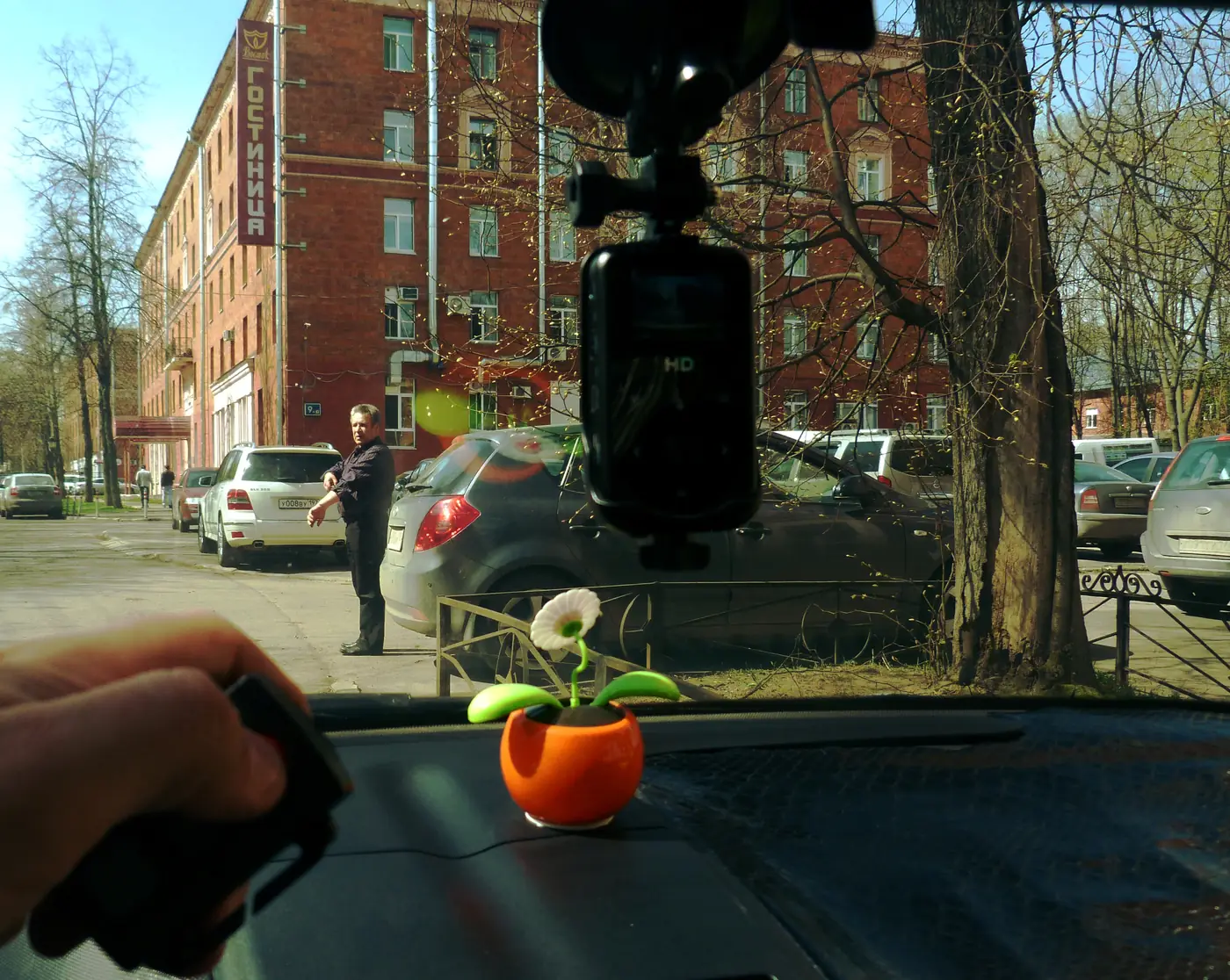

How does loop recording work?
The camera writes short video files — often one, two, or three minutes each, sometimes configurable — into folders on the card. When the card reaches a limit, the oldest unlocked files are deleted or overwritten so recording can continue. That is the loop.
If you never lock a file and never copy anything off, you only have a rolling window of recent driving (and, if you use it, recent parking events). The length of that window depends on card capacity, resolution, and bitrate, not on a universal number. A 4K camera at a high bitrate fills a 64 GB card faster than a 2K camera at a modest one. See 2K vs 4K.
What does the event or emergency button do?
Most cameras can lock a file so the loop will not overwrite it, at least until the reserved event folder fills up. A lock may be triggered by a button, a cable switch, a voice command, or a G-sensor (a shock sensor) that thinks there was an impact. G-sensors can also lock files for potholes and hard braking, which is why a card can slowly fill with “events” that are not crashes.
Learn the official lock method on day one. After a real incident, lock the clip, copy it off, and do not format the card until you have a backup. Event folders are not infinite; copy early. Details on sharing files are in the export guide.
Why does the camera say the card is full?
Common reasons:
- The card was never formatted in the camera.
- Locked event files have used the reserved space.
- The card is failing, or it is slower or larger than the official spec.
- Firmware is outdated, or the file system is in a bad state.
Format only after you copy anything you need. If the message returns on a new, in-spec endurance card, follow the maker’s support steps rather than buying a third card immediately.
What is bitrate, and should I set it as high as it will go?
Bitrate is how much data the camera writes per second of video. A higher official bitrate can hold more detail, especially in complex scenes, and it fills the card faster. A lower bitrate stretches the loop and can look blocky when you pause on a plate or a tree against the sky.
There is no single “correct” bitrate. Use the official default unless you have a reason to change it, then record a short test and zoom a still. If you raise bitrate or resolution, revisit card capacity and the official speed class.
Some cameras offer a quality setting (“high,” “low”) instead of a numeric bitrate. Treat those as relative, and confirm in a test clip rather than assuming “high” matches another brand’s “high.”
What file format will I get, and why won’t it play?
Many dash cams record MP4 or MOV-style files with H.264 or H.265 (HEVC) video. H.265 can be more efficient and more annoying to play on an older computer. If a file will not open, try the official app or player, or a current computer player that lists HEVC support. Do not assume a “corrupt” file is unplayable until you have tried another program and copied the file off the card cleanly.
Some units also write a GPS log as a separate file. Keep that with the video if you need location later; see GPS and speed stamps.
Rear and interior channels may be stored as separate files with related names. Copy the whole set for that timestamp, not only the front file you recognized first.
Does parking mode use the same loop?
Often parking clips go in a different folder with their own reserved space, still looping. A small card and a long weekend of motion events can overwrite a bump that happened on Friday night by Sunday afternoon. If parking documentation matters, use a larger official-capacity card, a sensible parking sensitivity, and a habit of reviewing events after a trip. See parking mode and vandalism and hit-and-run.
Power interruptions can leave a last file incomplete. A reliable power method helps the camera close files cleanly.
A short policy that avoids most surprises
- Format a new endurance card in the camera.
- Know how to lock a clip and how to copy it within a day of an incident.
- Do not treat locked files as a permanent archive; move them off the card.
- Test that your computer or phone can play the official format before you need to.
- If errors appear, copy, replace, or reformat rather than ignoring the message.
Loop recording is a feature, not a defect. Once you understand the window it gives you, the camera is easier to live with, and the files you keep on purpose are the ones that still exist when an insurer or a police desk asks. For what those files are for, see how footage helps after an accident.